How to View eCTD


How to View eCTD
Getting started is easy.
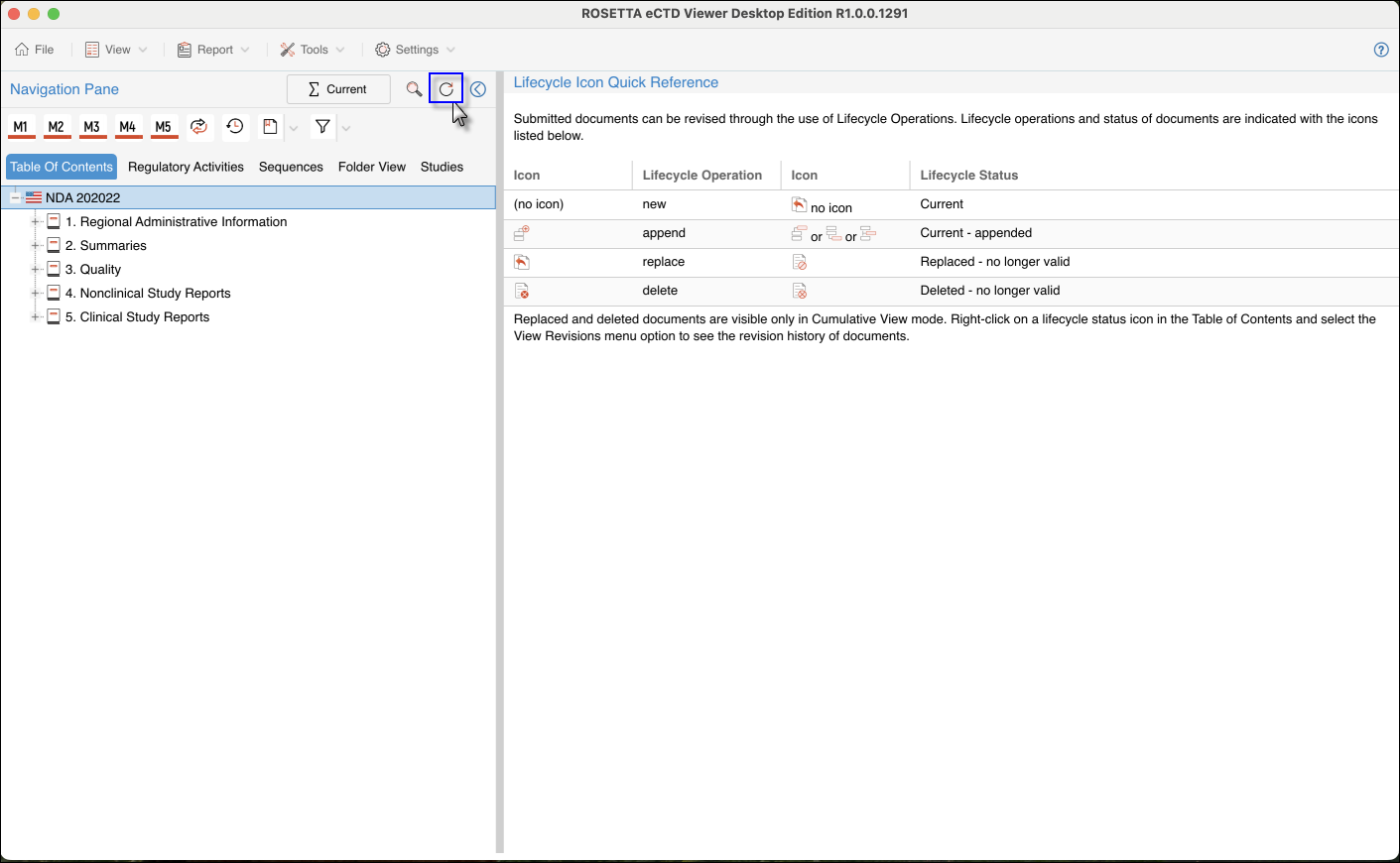
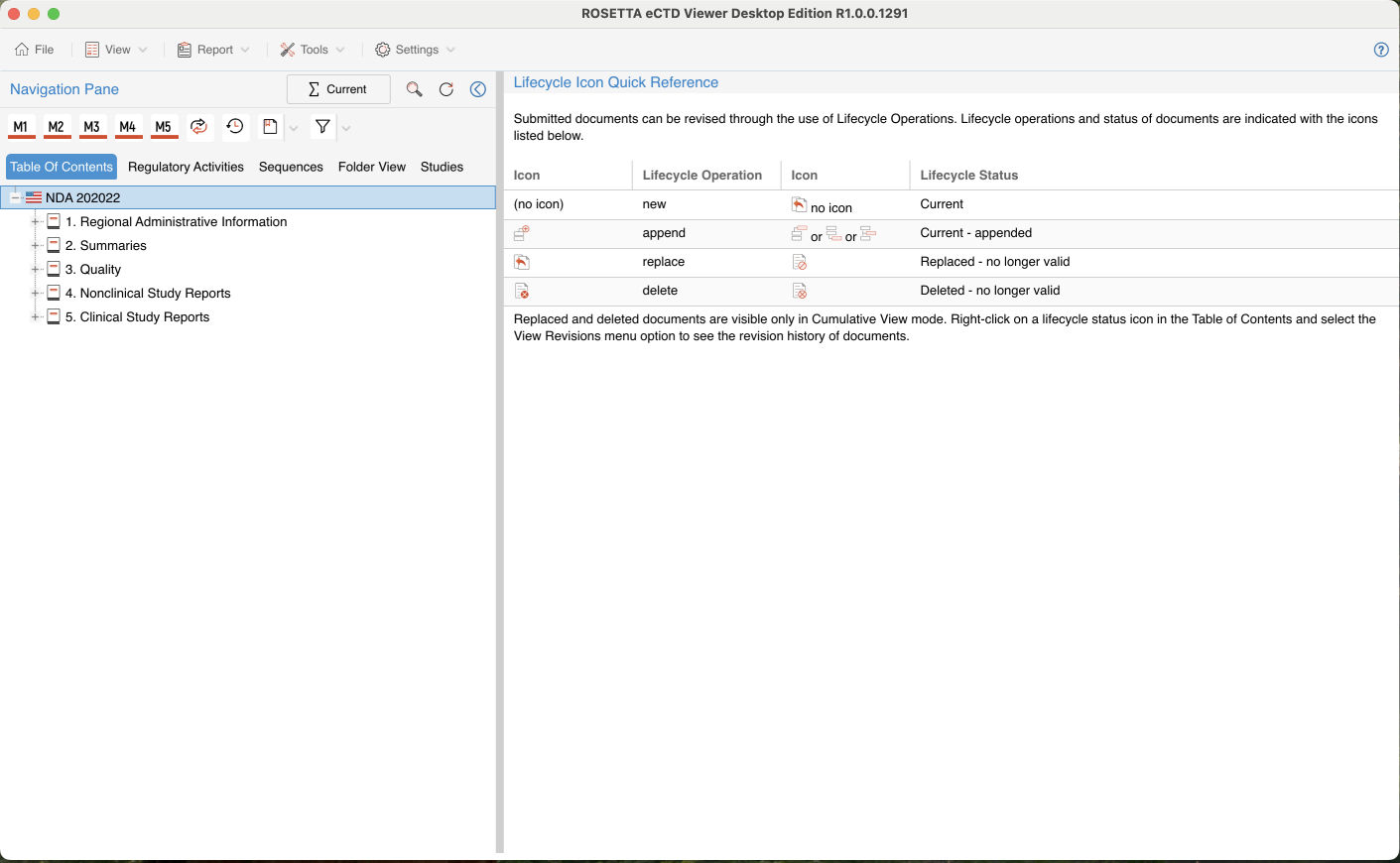
The opening eCTD application/Submission displays default under Table of Contents View in eCTD View Window.(About how to switch views, please click here: eCTD Views)
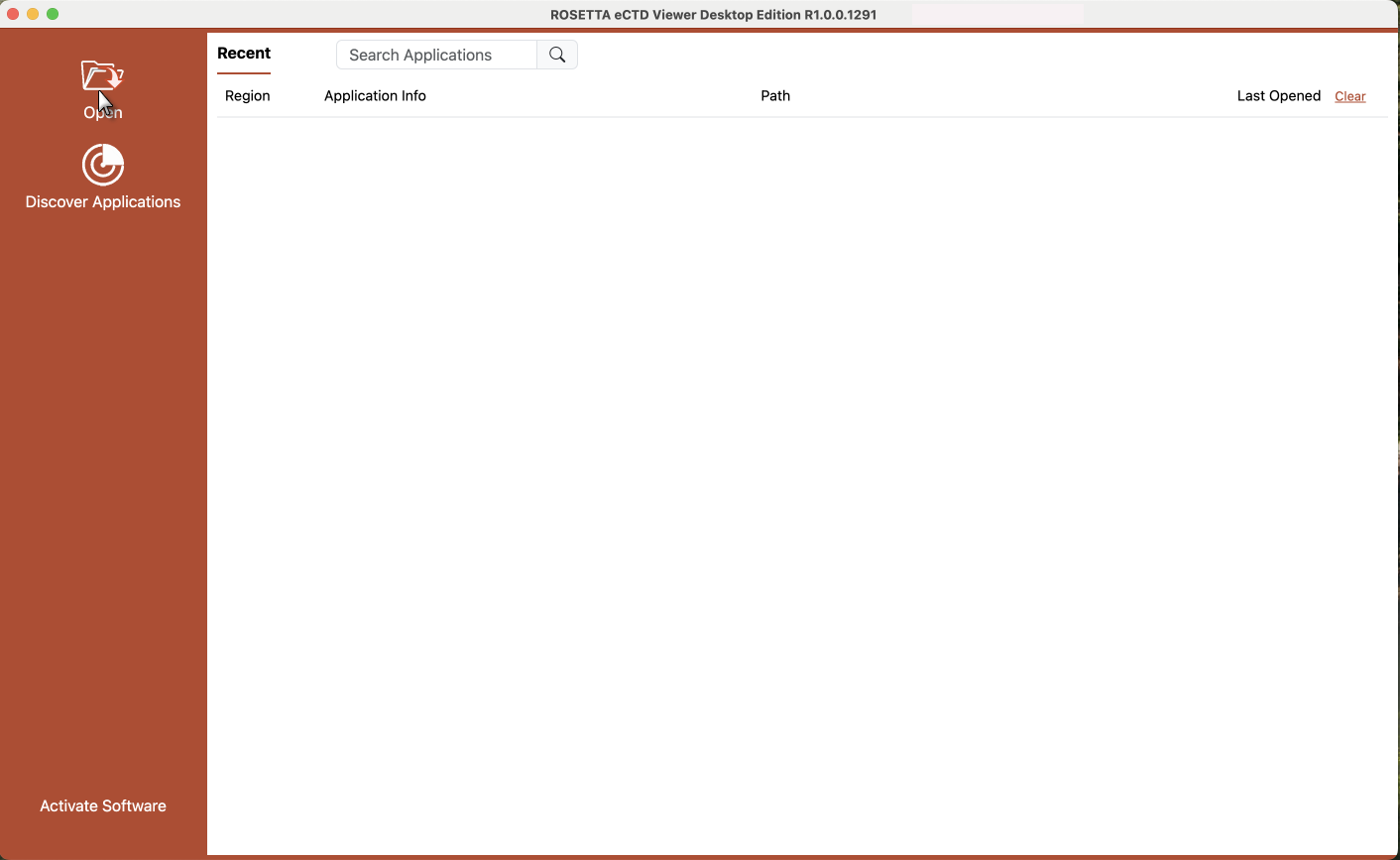
On eCTD View Window, click the menu "File" can back to HOME window.
If opened any eCTD then back to HOME window, it will show Return button  . Click the Return button
  will back to the eCTD View window and show the last opened eCTD.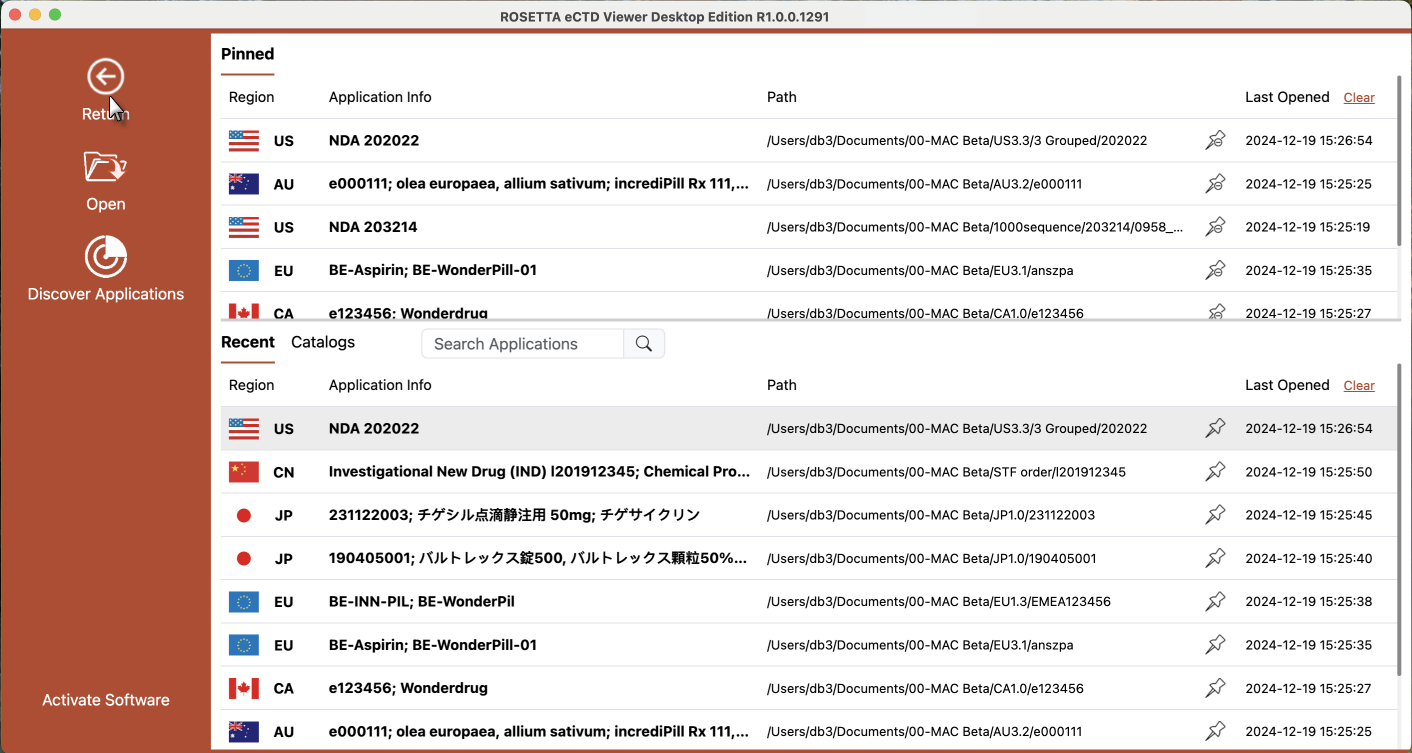
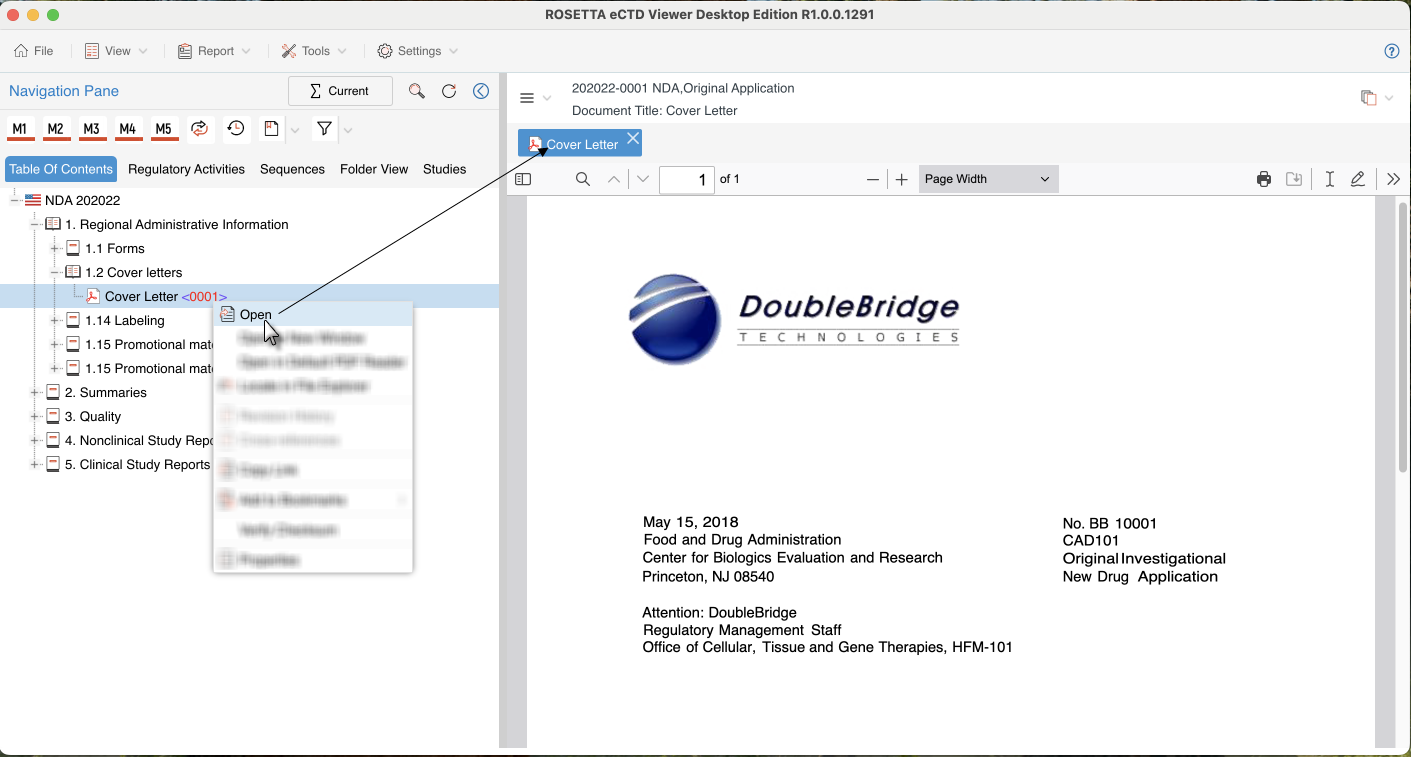
Open eCTD application/sequence in Viewer, On Navigation Pane, under any view, Double Click on the title of a document or select 'Open' from its right-click menu to open the document in a document viewing tab.
More than one documents can be opened at the same time.
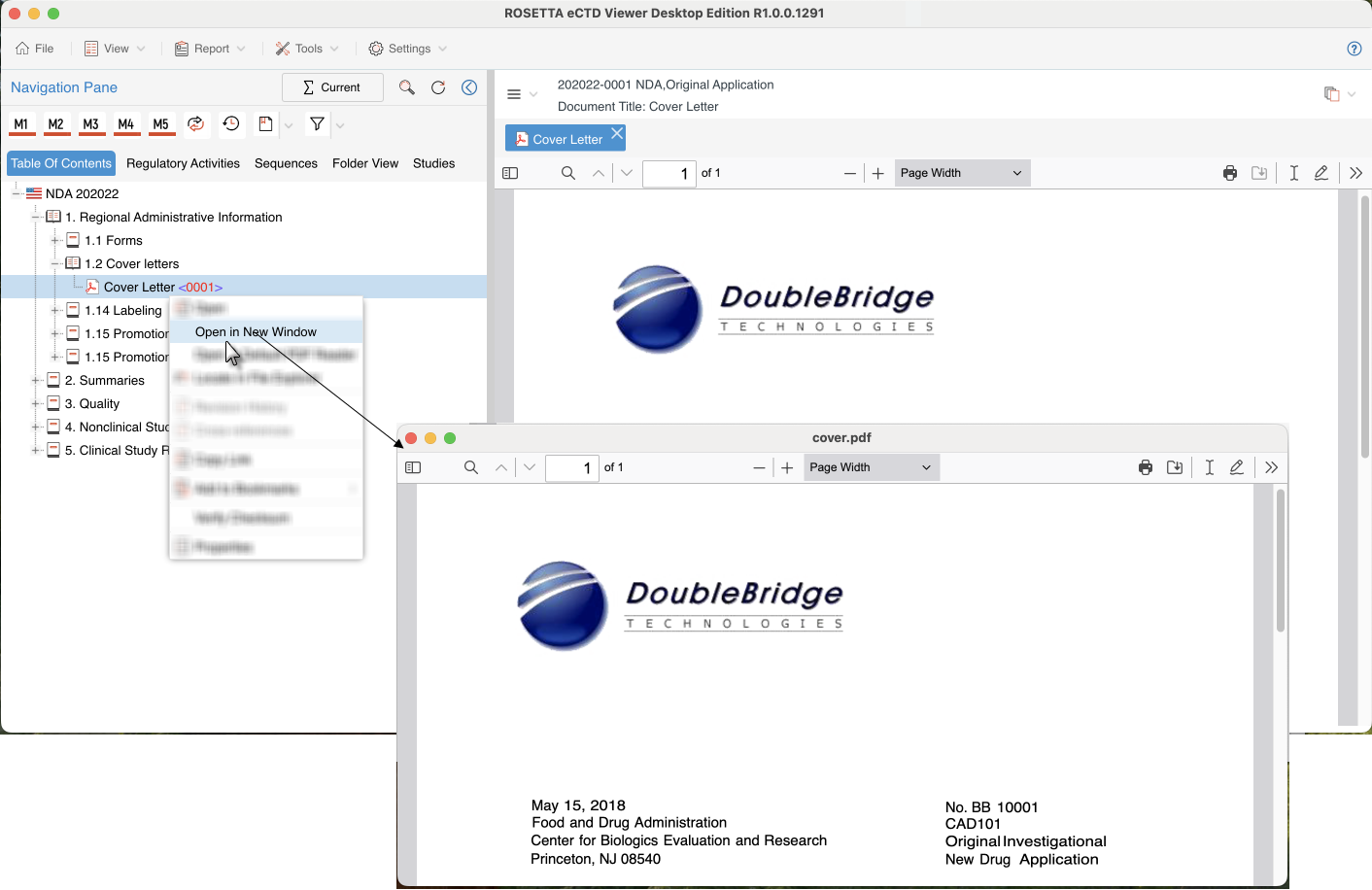
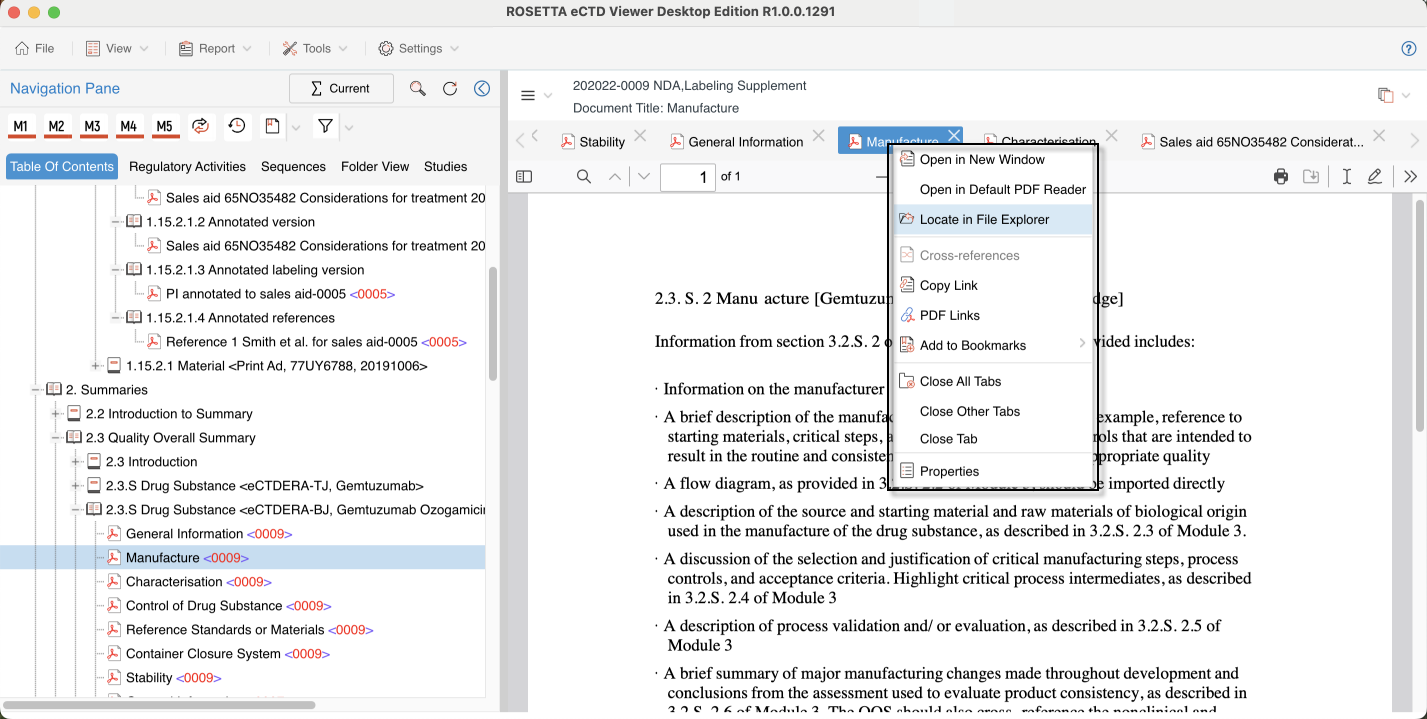
Select "Open in New Window" from right-click menu to open the document in a new window. It's convenience to split the screen between documents.
Select "Open in Default PDF Reader" from right-click menu to open the document in the PDF reader that installed on the OS.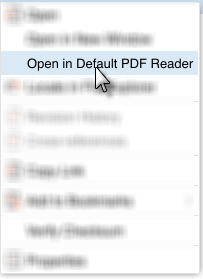
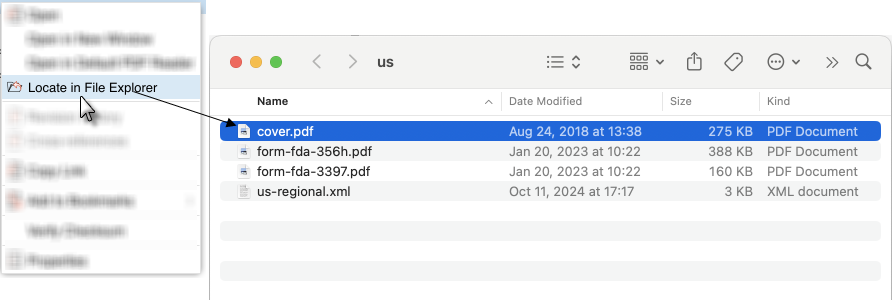
Select "Locate in File Explorer" from right-click menu to locates the file to windows file explorer.
More than one documents can be opened at the same time. When multiple documents are opening, click the documents icon on the right top of the opening documents  to select one of the opening document to view it in the current document viewing tab or click 'Close All Tabs' to close all opening documents.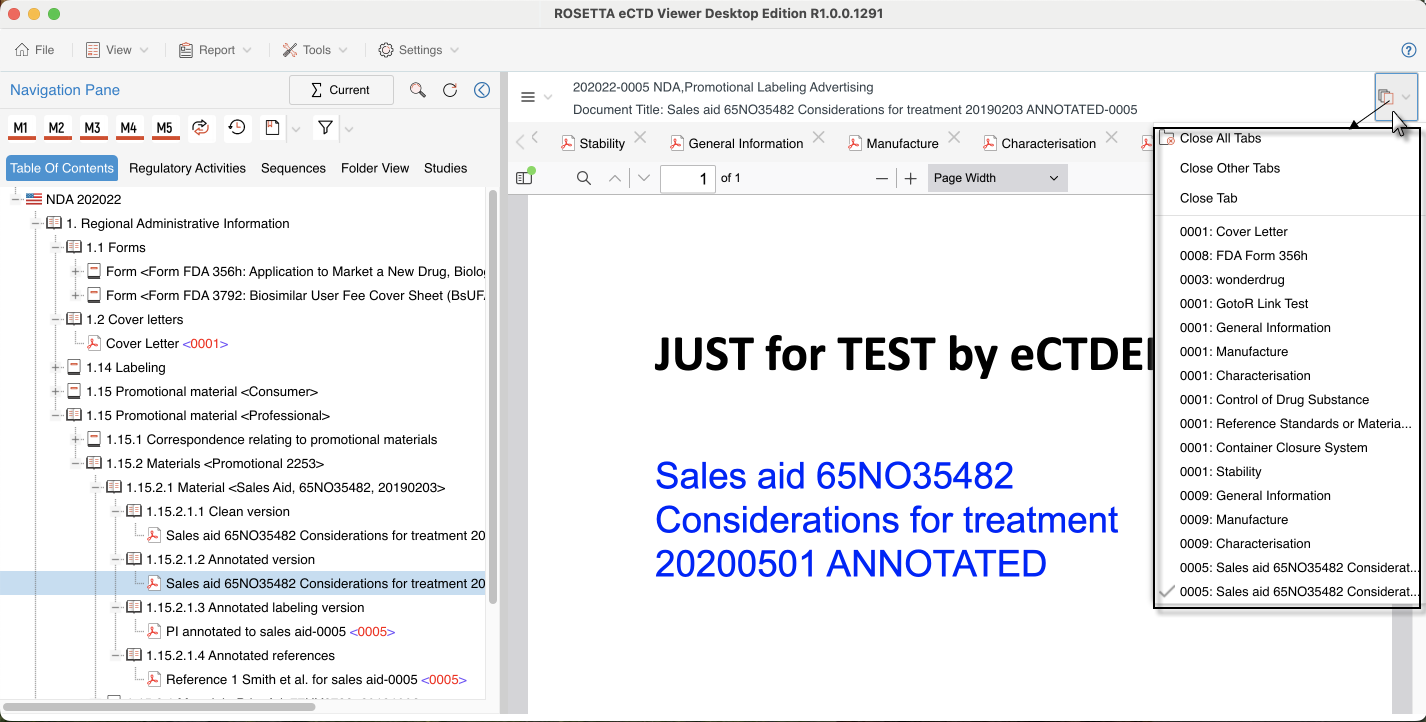
When multiple documents are opening, Right Click one of the opening document viewing tab to select menu options as your need.
Open eCTD application/sequence in Viewer. If changes are made to the eCTD backbone file, click the "Reload" button in the Navigation Pane to reload the application or submission.