Display Setting


Display Setting
ROSETTA eCTD Viewer supports the eCTD information's preference displaying setting via the Display&Ordering tab on Setting window.
Click Settings from HOME window to open Settings window, switch to Display tab
OR
On eCTD View window, Select Display from the menu Settings.
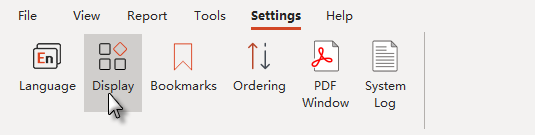
On the Display tab to do the setting.
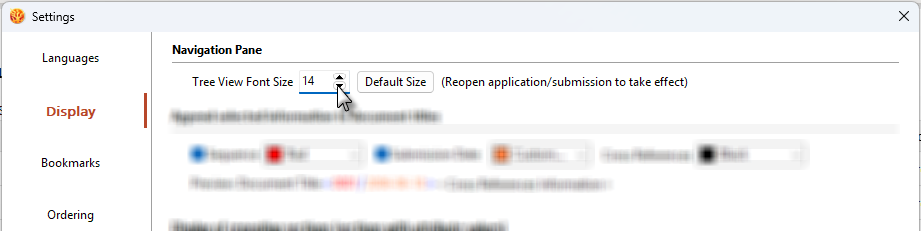
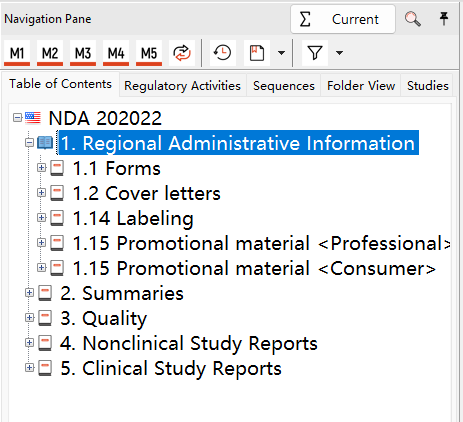
Reopen the application/submission, In the Tree View of Navigation pane, the font size setting take effect on tree view.
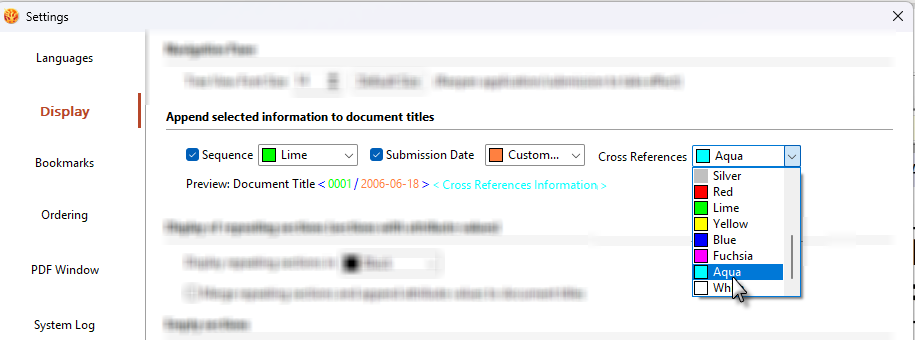
Under Display tab, in the Append selected information to document titles field, check on the information you want to append after document title and select the displaying color from the drop-down list, Click OK.
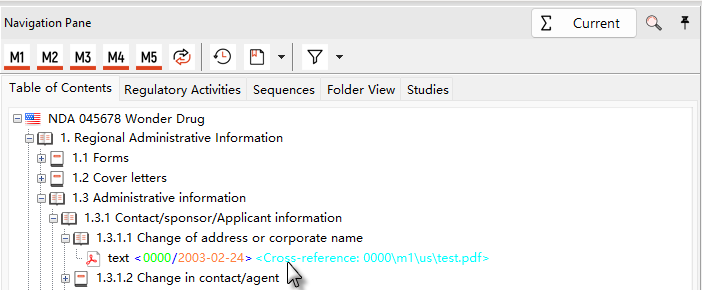
In the View, the displaying setting take effect.
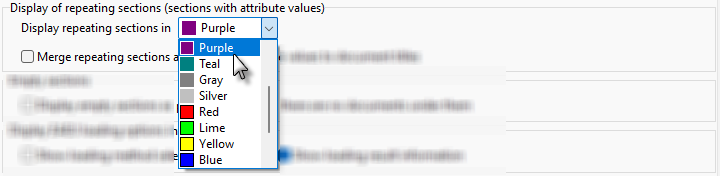
Under Display tab, in the Display of repeating sections field, select the displaying color from the drop-down list, Click OK.
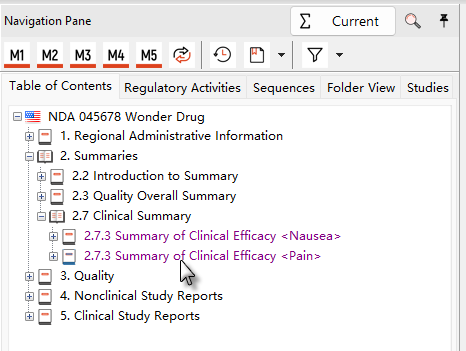
In the View, the displaying setting take effect.
If you want see the append attributes displays after document title, you can check on Merge repeating sections and append attribute values to document titles, then click OK.

In the View, the displaying setting take effect.
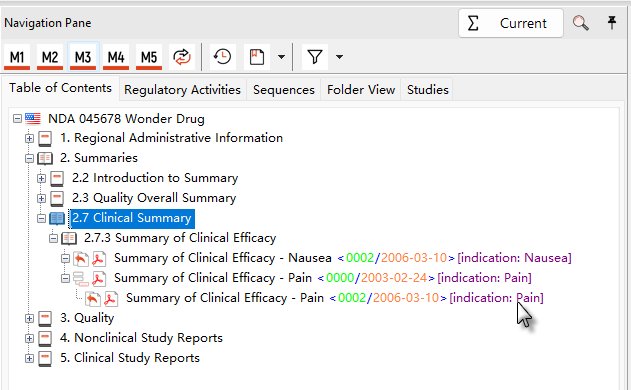
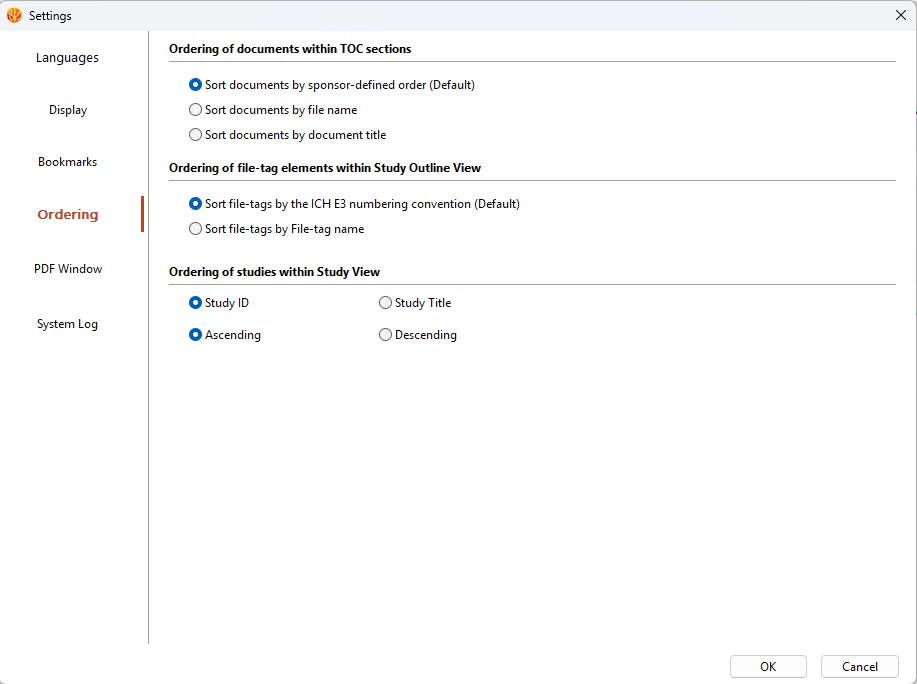
ROSETTA eCTD Viewer supports the ordering setting for the files in ToC tree by your preference.
Click Settings from HOME window to open Settings window, switch to Ordering tab.
OR
On eCTD View window, Select Ordering from the Ribbon menu Settings.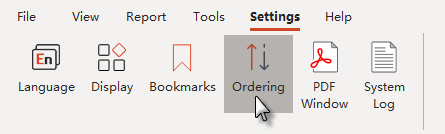
Under Ordering tab, set the ordering of the files in ToC tree by your preference.