Activate ROSETTA eCTD Viewer


ROSETTA eCTD Viewer requires activation for use for the first time or your license subscription has expired.
Once ROSETTA eCTD Viewer is installed, you will need to obtain a license to activate the software.
If you have obtained the license, please refer to the steps below to activate the ROSETTA eCTD Viewer.
Your computer must be connected to the Internet to online activate the software.
Step 1: Online Activation tab is shown by default after opening ROSETTA eCTD Viewer.
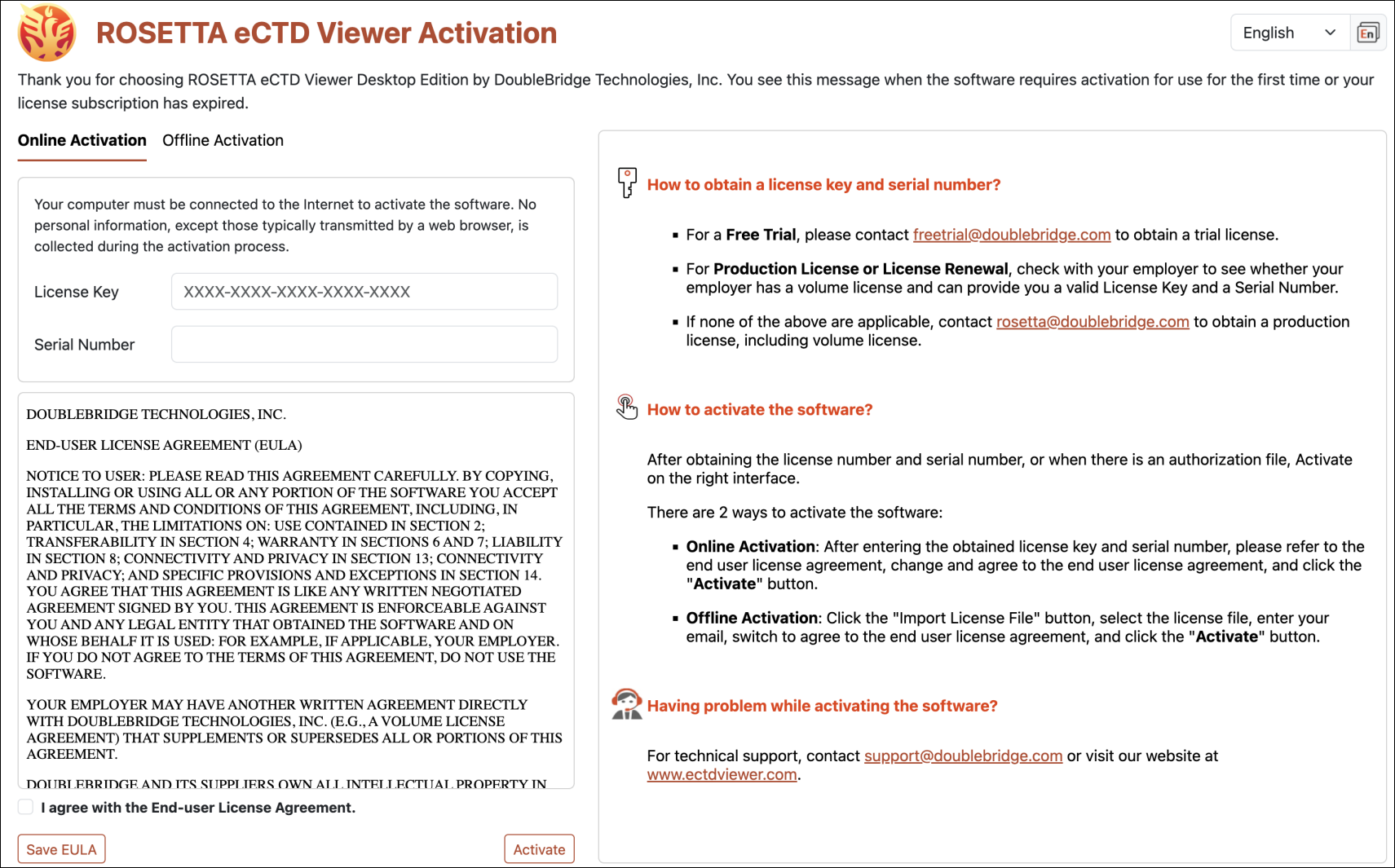
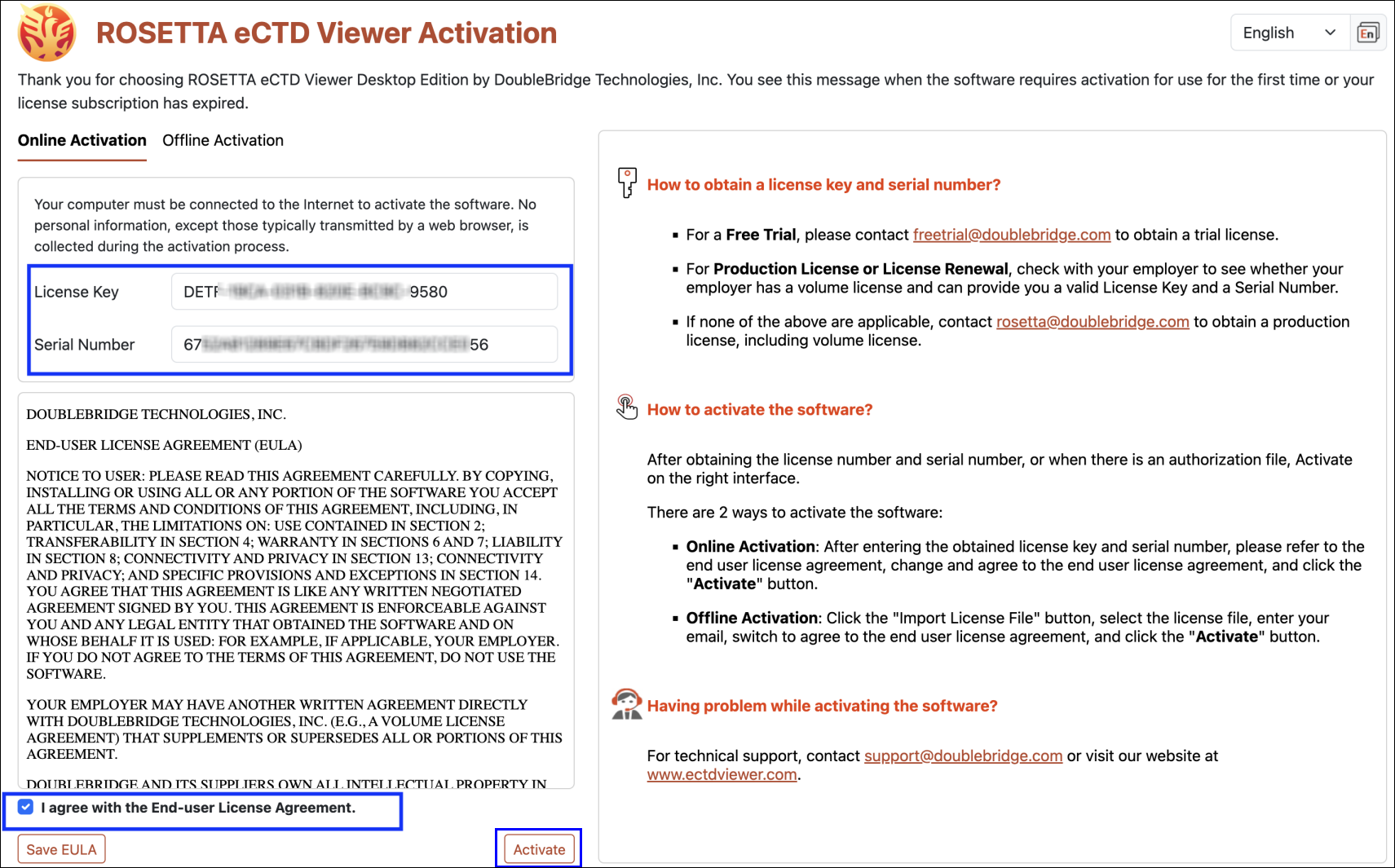
Step 2: Populate the “License Key” and “Serial Number”, then check the checkbox of “I agree with the End-user License Agreement” and click on “Activate” button.
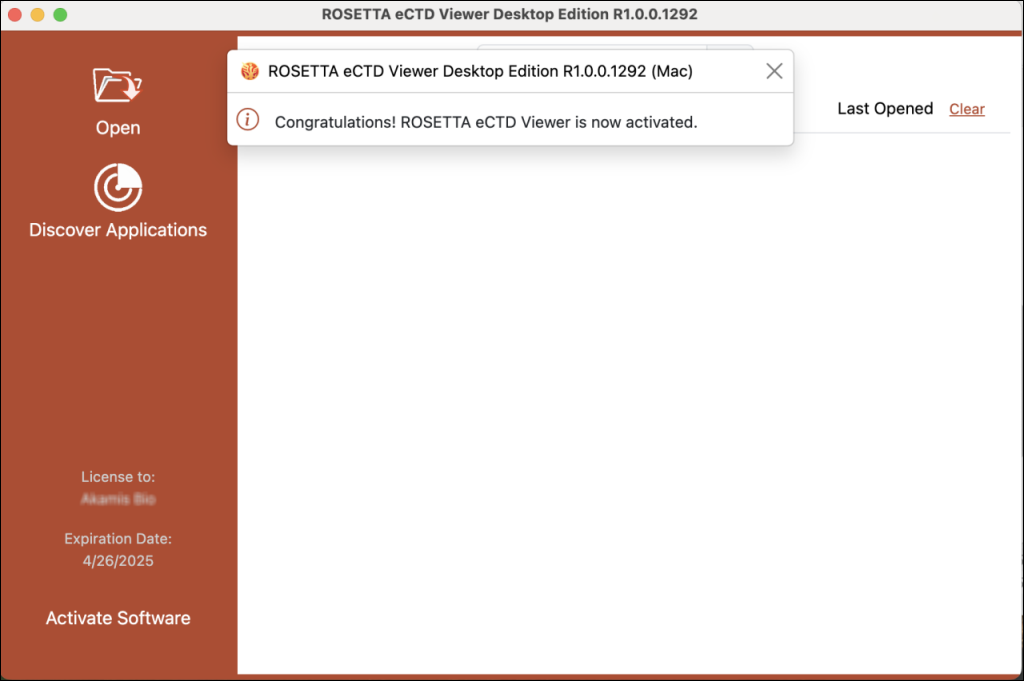
Activated successfully:
If you need to activate ROSETTA eCTD Viewer with a license file in a no-network environment, you can select Offline Activation.
Step 1: Switch to Offline Activation tab after opening ROSETTA eCTD Viewer.
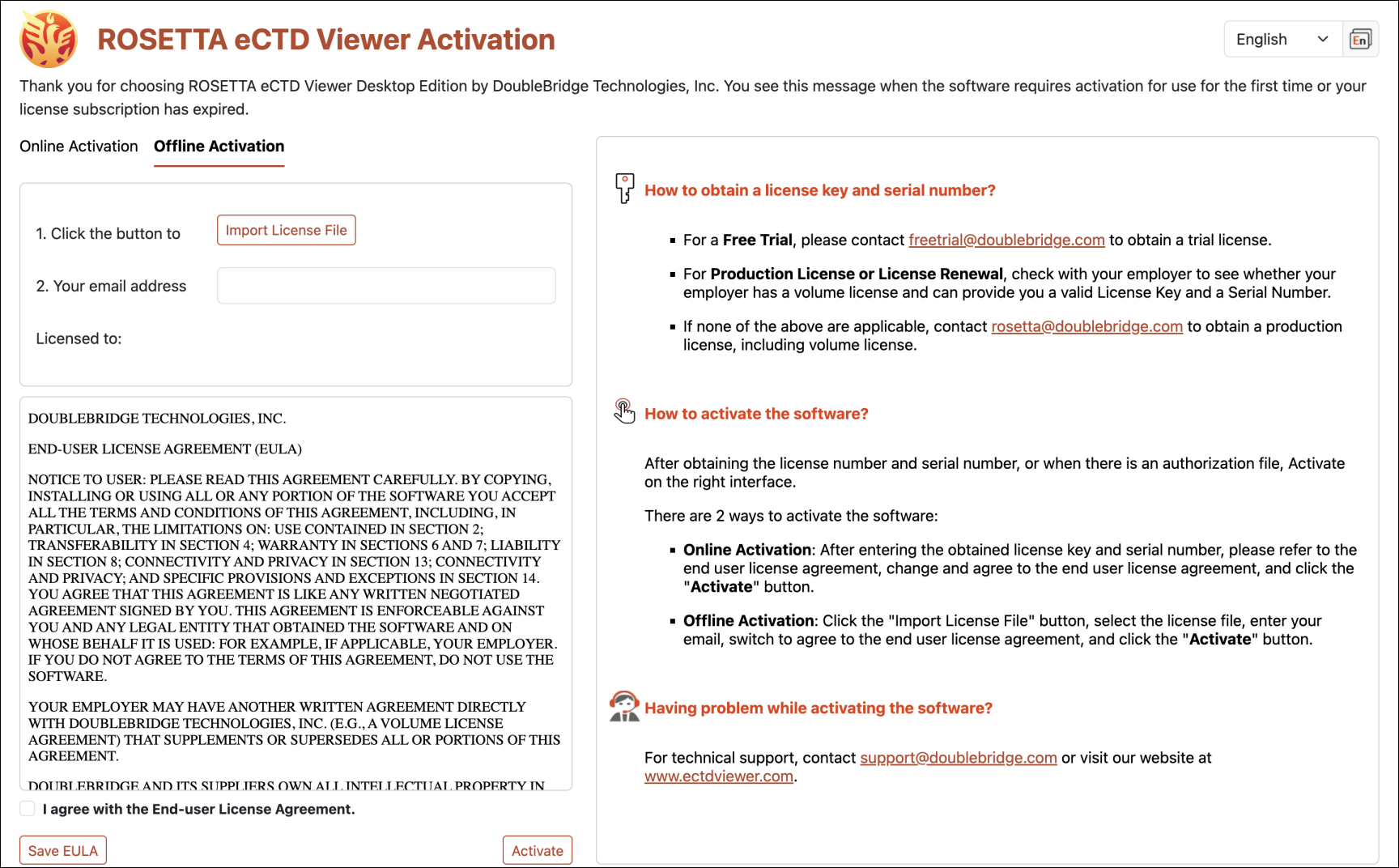
Step 2: Click on "Import License File" button to select the license file license.dat and click on "Open" button.
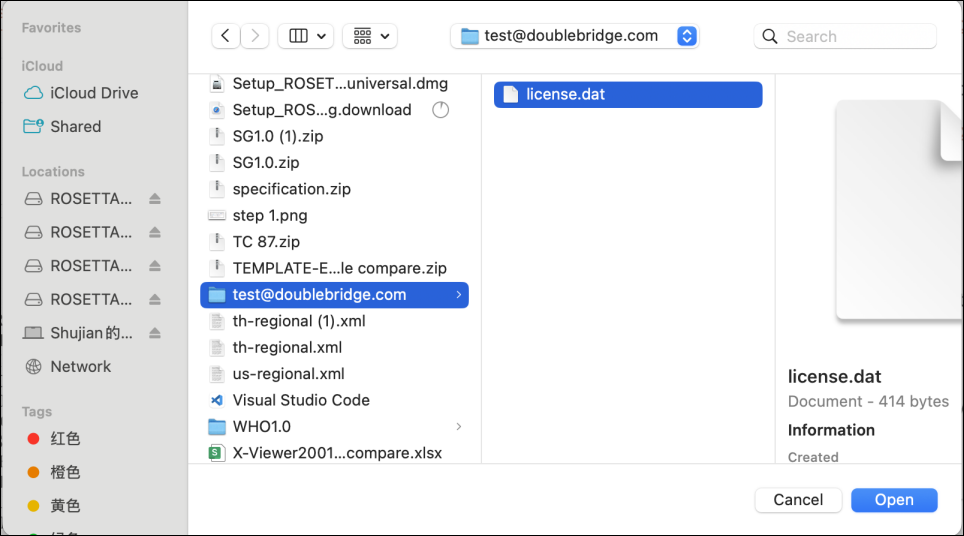
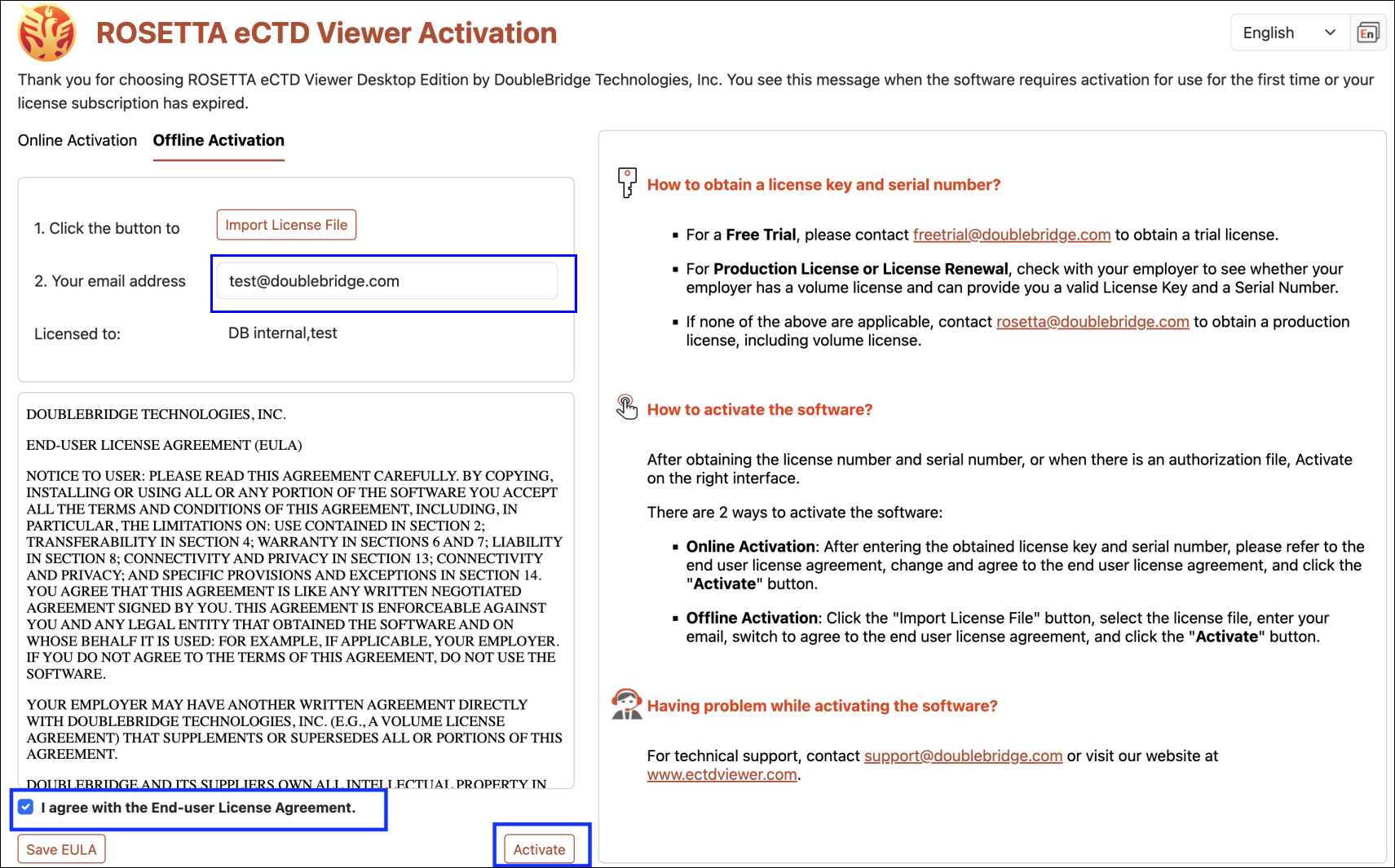
Step 3: In the "Your email address" input field, enter the email address used as the folder name for the license.dat file. Next, check on "I agree with the End-user License Agreement" and click the "Activate" button.
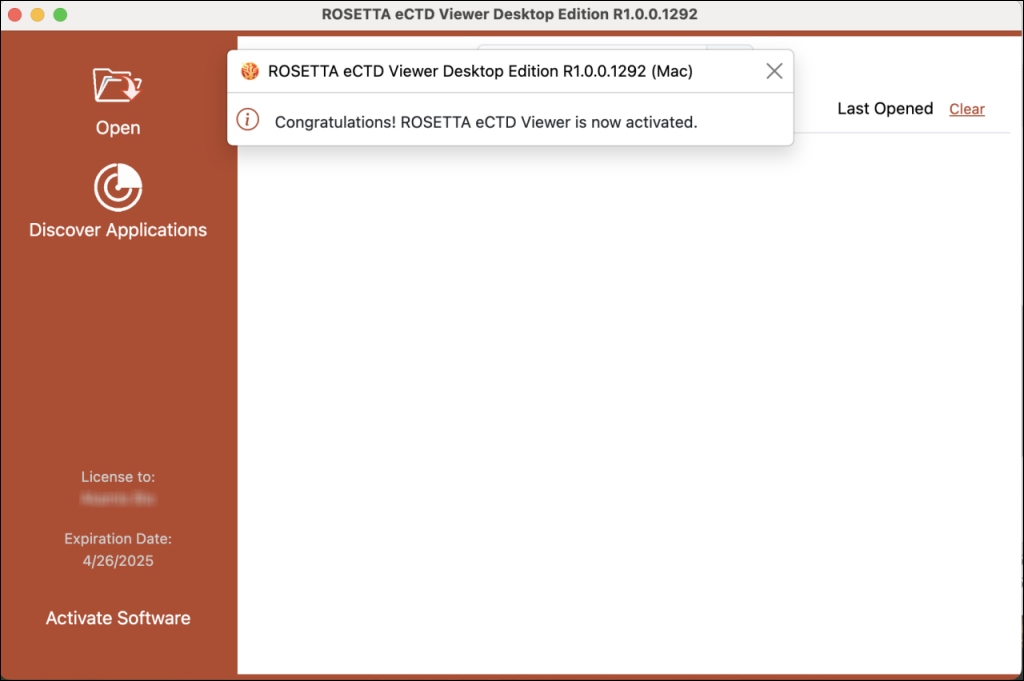
Activated successfully:
If having problem while activating the software, For technical support, contact support@doublebridge.com.